Body
Summary
This article explains how to determine whether your UTHSC-owned computer is reporting correctly in TechConnect and provides steps to resolve devices showing an Unhealthy, Lapsed or Unknown status. It also outlines what to do if the device cannot be located or still fails to report after troubleshooting.
Prerequisites
- You must be able to log in to TechConnect.
- You must have access to the device or information about its last known location.
- For off-campus use, you must have the UTHSC VPN installed and functioning.
- Device must be a UTHSC-owned Windows or macOS computer.
Instructions
Check Your Computing Assets
- Click your name or Sign In in the upper-right corner of this page.
- Sign in with your UT credentials, if needed.
- Select My Profile.
- Scroll to the bottom to view My Assets.
- Look for any devices listed as Unhealthy, Lapsed or Unknown.
If you have devices marked Unhealthy, Lapsed or Unknown but cannot locate them, submit a Asset Management ticket with any details you know (past locations, owners, surplus status, lost/stolen reports, etc.).
Make Sure You’re on a UTHSC-Approved Network
On Campus
- UTHSC Wi-Fi
- Wired docking station
- Ethernet cable
Off Campus
Devices not connected to an approved network may not report.
Confirm You Have Internet Access
Windows
- Check the network icon in the bottom-right corner.
- Ensure it shows Wi-Fi bars or a wired connection (not a globe with a slash).
- Visit uthsc.edu to confirm connectivity.
Mac
- Check the Wi-Fi icon in the top-right menu bar.
- Ensure it is filled in (not empty or crossed out).
- Visit uthsc.edu to confirm connectivity.
Restart Your Device
Windows
- Click the Start button.
- Select the Power icon.
- Choose Restart (not Shut down).
- Wait 2–3 minutes after reboot.
- Reconnect to VPN if off campus.
Mac
- Click the Apple menu.
- Select Restart (not Shut Down).
- Wait 2–3 minutes after reboot.
- Reconnect to VPN if off campus.
Keep the Device Awake, Plugged In, and Online
To allow management tools to check in:
- Keep the device plugged in.
- Keep it awake for 5–10 minutes.
- Stay connected to Wi-Fi, wired network, or VPN.
- Do not close the lid.
Management tools run automatically; no further action is needed.
Troubleshooting
If the Device Still Shows Unhealthy, Lapsed or Unknown After 48 Hours
Contact the UTHSC ITS Service Desk at 901.448.2222 and provide:
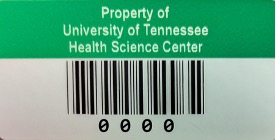
- Computer name (e.g., UTHSC0000) or green tag number
- Whether you are on campus or VPN
- Any error messages you observed
A technician will assist with further diagnostics.
Additional Notes
- Devices that remain offline for long periods may stop reporting and require manual intervention.
- Leaving the device online and awake for extended periods helps ensure updates, security checks, and inventory reporting occur properly.
- If a device is believed to be lost, stolen, or sent to Surplus, include that information in your ticket.
Related Articles